Meta troubleshooting · Pairing
Meta glasses not connecting? Fix it by symptom, in Meta’s own order
When Meta glasses will not connect, Meta's pairing article names three usual causes: the glasses' charge level, the phone's Bluetooth connection, or an earlier pairing to a different phone. This guide sorts Meta's own help-centre fixes by what you are seeing, for iPhone and Android, in the order Meta gives them, and says which one step deletes your photos.
Still deciding? Get the M02C, M08 and M08C comparison in your inbox, with your new-customer price already applied.
One email with the comparison, one follow-up a few days later. Unsubscribe any time.
1. Match what you see to the fix
Meta publishes one fixed order of steps for pairing problems and a separate restart article (restart, then force restart) that this guide uses for glasses that paired before and have dropped off (both checked October 31, 2026). The table below maps what you see to the right one. Meta’s pairing article refers only to “AI glasses” and names no models; its restart article covers Ray-Ban Meta, Oakley Meta HSTN and Meta Glasses, and its factory-reset article covers Ray-Ban Meta and Oakley Meta. Meta says the Oakley Meta Vanguard restarts differently and the Meta Ray-Ban Display resets differently, so check Meta’s own pages for those two.
| What you see | What to do first | Section |
|---|---|---|
| The app cannot find the glasses; the case light never turns blue | Glasses on and in the case, hold the case button 5 seconds; if it never pulses blue, reset the case | 3 |
| The glasses show in the phone’s Bluetooth list but the app will not add them | Forget them in the Bluetooth list, then pair again from the app | 3 |
| The glasses LED blinks white and does not stop | Force restart, then pair again from the app | 4 |
| They worked before; the app now shows them offline, or they keep dropping | Restart, then force restart, then wait a few minutes | 4 |
| Photos or videos will not show up on the phone | Check the app’s photo permission and import settings | 5 |
| The glasses were paired to another phone or another person’s account | Factory reset the glasses (it deletes their photos and videos) | 6 |
| Nothing above worked | Contact Meta Store Support | 6 |
2. The checks to run before any reset
Four conditions come first, according to Meta’s “How to fix pairing issues with AI glasses” page (checked October 31, 2026). The Meta AI app is up to date. Your phone has Bluetooth on and an active Wi-Fi connection. The glasses have charged for at least an hour, or until the case light is green. And the glasses are on and in the case, with about 45 seconds allowed before you try to pair. Meta names three usual causes of pairing trouble: the charge level of the glasses, the phone’s Bluetooth connection, and an earlier pairing to a different phone. If the battery may be flat, our how to charge Meta glasses guide covers the case lights.
Start with the app. Meta’s help article on the change says it is updating the Meta View app into the Meta AI app, and that once you update from the App Store or Google Play your paired devices, settings and media transfer over automatically; the article gives no date. On iPhone, the App Store listing for Meta AI says “Requires iOS 18.4 or later” (checked October 31, 2026); our check of the same listing on October 7 read iOS 17.2, so the bar has moved. If your iPhone is on an older iOS, check that the Meta AI app installs and opens before you work through the steps below. For updating the glasses themselves, see how to update Meta glasses.
3. Won’t pair: Meta’s four steps, in order
Run these in sequence and stop when the glasses connect. Before step 1, put the glasses in pairing mode: slide the power button on the left frame toward the front, set the glasses in the case with the nose bridge touching the charging port, and look for the case light to flash blue (Meta, checked October 31, 2026).
- Step 1: force pairing mode. If the light is not blue, hold the button on the case for at least 5 seconds and release when it pulses blue. If it never turns blue, Meta says to factory reset the charging case: take the glasses out and hold the button on the back of the case for more than 16 seconds.
- Step 2: clear the phone’s Bluetooth entry.If the glasses appear in your phone’s Bluetooth connections, forget them, then add them again from the Meta AI app (Glasses icon at the top right, then Add). On iPhone, Apple lists the path as Settings, Bluetooth, the More Info button beside the device, then Forget this Device (Apple Support, checked October 31, 2026). On Android the path varies by phone; look under Bluetooth or connected devices for the glasses and choose Forget or Unpair.
- Step 3: reinstall the app. Delete the Meta AI app and install it again.
- Step 4: factory reset the glasses. Do this if the first three fail, or if the glasses were previously paired to a different phone. It deletes photos and videos; see section 6 first.
For iPhone-specific setup, with the account and the first pairing, see how to connect Meta glasses to an iPhone. One more rule from Meta’s set-up page (checked October 31, 2026): AI glasses pair with only one valid Meta Account at a time, and you need to factory reset them before someone else can pair them to their account.
4. Paired before, now offline or dropping: the restart ladder
Glasses that paired once and now show as offline get a lighter treatment first. None of the Meta articles we read (checked October 31, 2026) describes a separate fix for glasses that drop and reconnect repeatedly, so work through Meta’s restart ladder in this order.
- Restart. Slide the power button back, wait a few seconds, slide it forward. Meta says the glasses reconnect to the app automatically, and a restart does not erase photos and videos you have not imported or unpair the glasses.
- Force restart. If a restart did not help: slide the power button back, press and hold the capture button, and while holding it slide the power button forward. Release as soon as the status light turns red; if it does not turn red, slide the power button back and repeat. Meta says a force restart also keeps your photos and videos and you do not need to pair again. Meta points to this step when the glasses light blinks white continuously during pairing.
- Wait a few minutes. Meta says the glasses can take a few minutes to reconnect after a force restart, so wait before you re-pair.
- Re-pair.If they still do not reconnect, unpair them in the app (Glasses icon, Device settings, your glasses, General, Unpair glasses), remove them from the phone’s Bluetooth devices, and pair again. Unpairing does not change or erase your settings.
If the problem comes back after a force restart, Meta’s next step is a factory reset. Keep a note of when the drops happen. If they follow a flat battery, charge the glasses first; charge level is one of the three usual causes Meta names.
5. iPhone and Android: the differences we found
Meta’s pairing-fix article (checked October 31, 2026) gives one set of steps and describes no iPhone or Android difference. Three differences do show up in the sources we read.
- The app requirement. The App Store lists iOS 18.4 or later for Meta AI (checked October 31, 2026). For Android, we could not read a minimum version from the Google Play listing, so none is quoted here; check the listing for your phone.
- The Bluetooth list.Forgetting the glasses is a phone setting, so its menu path depends on iOS or on your Android phone’s maker.
- A persistent Android notification.Meta says Android shows a persistent notification for apps that are active, and that some voice control features and media import settings need the Meta AI app running in the background. Swiping it away, Meta says, leaves the app running. On older Android versions where it cannot be dismissed, Meta’s fix is to turn off Auto-import media under Device settings, then import by hand.
A connected pair that does not deliver photos is a separate case. Meta’s import article says media stays on the glasses until you import it into the app, after which it is removed from the glasses and saved to the phone’s photos app. It also says that if you revoke the app’s photo permission, the media will not show in Photos. The article does not say whether Bluetooth or Wi-Fi carries the transfer, so check the permission and your phone’s connections before blaming the glasses. For a wider view of the app, see the Meta glasses app guide.
6. Factory reset last: what it deletes, and when to call Meta
A factory reset deletes all photos and videos on the glasses, and you pair them with the app again afterwards (Meta, checked October 31, 2026). Photos stay on the glasses until imported, so if the app still opens, import first. The steps for Ray-Ban Meta and Oakley Meta: take the glasses out of the case, make sure they are charged and on, close both arms, press the capture button 5 times until the light turns orange, then press and hold the capture button and let go when the light flashes. Meta Ray-Ban Display has a separate article.
If a force restart and a factory reset both fail, Meta’s own pages end the same way: contact Meta Store Support. Do not repeat resets. For a pair that may be under warranty, our Meta glasses warranty guide explains who handles claims, and Meta glasses repair covers the repair routes.
7. If you are shopping for a different pair
OXIVUE publishes this page and sells the frames in this section. Nothing above applies to them: they are not Meta products, they use their own free companion app rather than the Meta AI app, and they do not run Meta AI. The M08 is $99 at checkout (listed $149). It has an 8 MP camera, Bluetooth 5.4, weighs about 42 g and is rated 7 hours of listening and 4 hours of calls, with a sunglasses, photochromic or clear lens; the photochromic lens darkens in UV light and is close to clear indoors. Translation covers 40+ languages through the companion app, which needs your phone.
It is not a fix for a Meta pair, and it is not for you if you need a display, prescription lenses or Meta AI: the M08 has none of the three, and it has no published water rating. Two or more pairs in one order are 50% off all eyewear. Compare every model on the comparison page.
Shipping, refunds and warranty. Free shipping from $99. US orders typically arrive in 5–9 business days; international orders take 9–14 business days after shipment, and import VAT or duties outside the US are paid by the recipient. No refunds except transit damage (replaced or refunded); faults are repaired or replaced under the 2-year warranty; change of mind and unmet expectations are not refundable. None of our frames take prescription lenses. Details on the shipping policy page. Read the refund policy.
Frequently asked questions
How do I pair Meta glasses with my phone?
Put the glasses in pairing mode, then add them in the Meta AI app. Per Meta (checked October 31, 2026): turn the glasses on, put them in the case, wait for the case light to flash blue (hold the case button at least 5 seconds if it does not), then tap the Glasses icon at the top right of the app and choose Add. Bluetooth must be on, and the glasses should have charged for an hour or until the case light is green.
Why do my Meta glasses keep disconnecting and reconnecting?
Work down Meta's restart ladder: restart, then force restart, then wait a few minutes. Meta's help pages we read (checked October 31, 2026) do not describe a separate fix for glasses that repeatedly drop and reconnect, so this is its general sequence. If they still do not stay connected, unpair them in the app, remove them from the phone's Bluetooth devices and pair again. Check the charge first, because Meta names charge level as a usual cause of pairing problems.
How do I reset Meta glasses without losing my photos?
Use a restart or a force restart: neither deletes photos or videos, and neither unpairs the glasses, according to Meta (checked October 31, 2026). A factory reset is different: it deletes all photos and videos on the glasses and you must pair again. Photos stay on the glasses until you import them into the Meta AI app, so import first if the app still opens. Ray-Ban Meta and Oakley Meta share the factory-reset steps; Meta Ray-Ban Display has its own article.
Why won't my Meta glasses connect to Wi-Fi?
Start with your phone, not the glasses. Meta's pairing-fix article (checked October 31, 2026) lists an active Wi-Fi connection on the phone, along with Bluetooth, among the checks before you pair; the Meta pages we read do not describe a Wi-Fi setting on the glasses. Its media-import article does not say whether Bluetooth or Wi-Fi carries a transfer, so we cannot tell you which one a stalled import is waiting on. Turn Wi-Fi and Bluetooth off and on, then run the restart steps in this guide.
Do the fixes differ on iPhone and Android?
Mostly no. Meta's pairing-fix article (checked October 31, 2026) gives one set of steps and describes no iPhone or Android difference. What differs, in the sources we read, is the app requirement (the App Store lists iOS 18.4 or later for Meta AI), the route to the phone's Bluetooth list when you forget the glasses, and, on Android, a persistent notification that Meta links to features needing the app in the background. Swiping it away, Meta says, leaves the app running.
Can I connect the same Meta glasses to a new phone or someone else's account?
Yes for a new phone, but a different person's account needs a factory reset first. Meta says AI glasses pair with only one valid Meta Account at a time, and that you need to factory reset them before someone else can pair them to their account. For a new phone, unpair in the app and pair again. Meta's pairing-fix article (checked October 31, 2026) lists an earlier pairing to a different phone as a usual cause of failure and points to a factory reset if pairing still fails. Unpairing does not change or erase settings, Meta says. Import your photos before any reset.
When should I contact Meta instead of resetting again?
After the force restart and the factory reset have both failed. Meta's restart article (checked October 31, 2026) says that if a problem persists after a force restart you should factory reset, then contact Meta Store Support; its pairing-fix article also ends with Meta Store Support. Do not keep repeating resets. For who handles a claim on which brand of glasses, see our Meta glasses warranty guide.
OXIVUE frames side by side
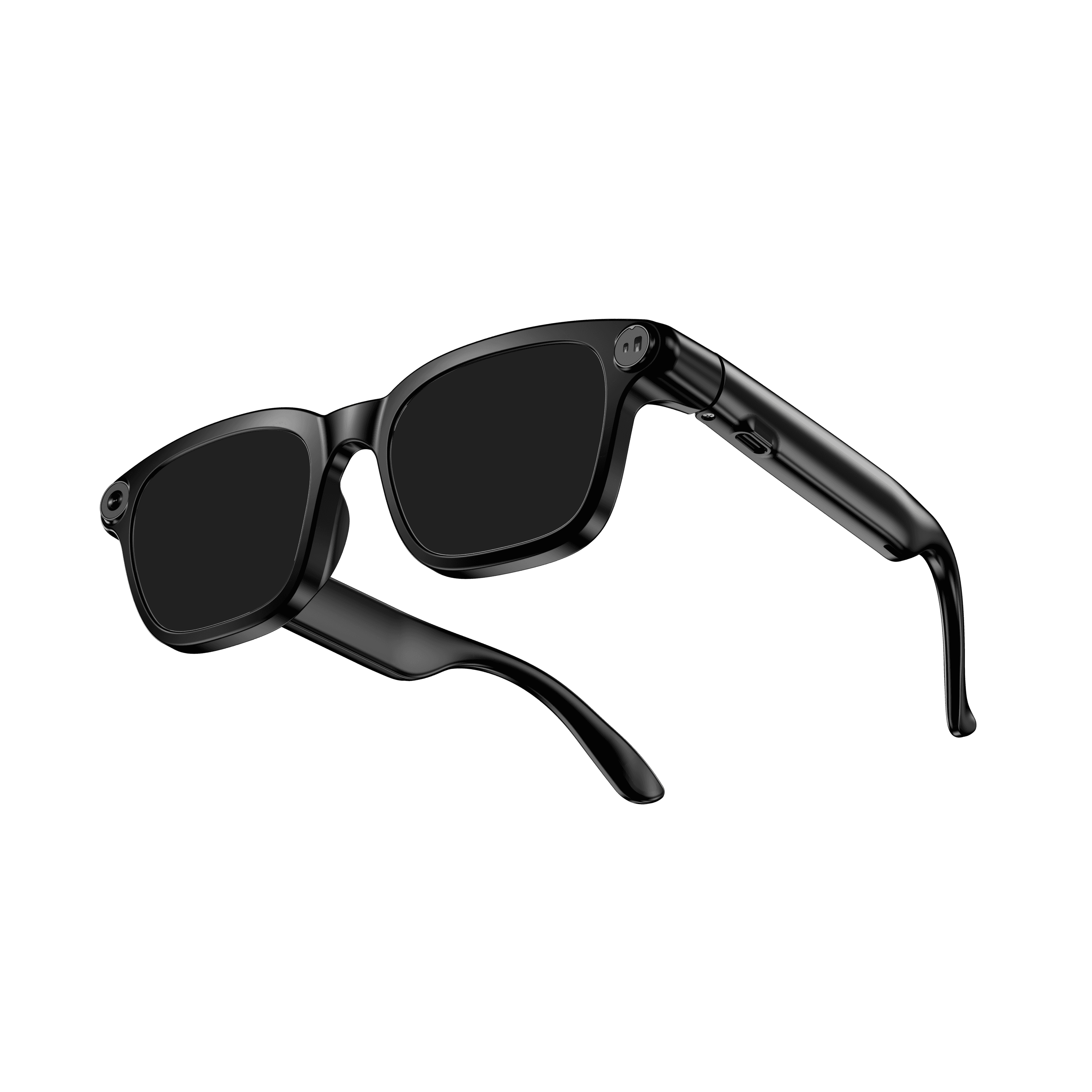 OXIVUE M08$99 at checkout OXIVUE M08$99 at checkout | 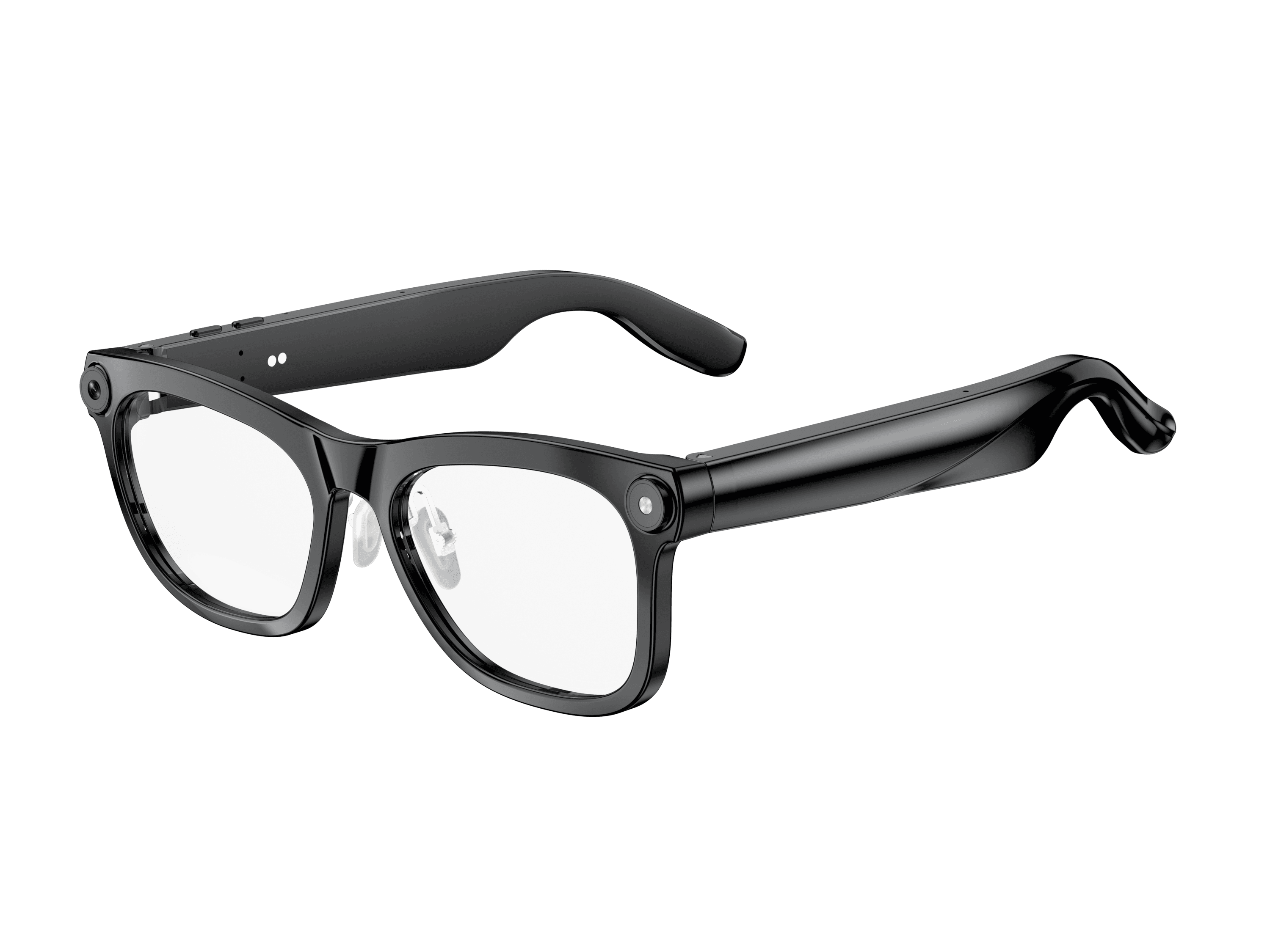 OXIVUE M02C$109 at checkout OXIVUE M02C$109 at checkout | 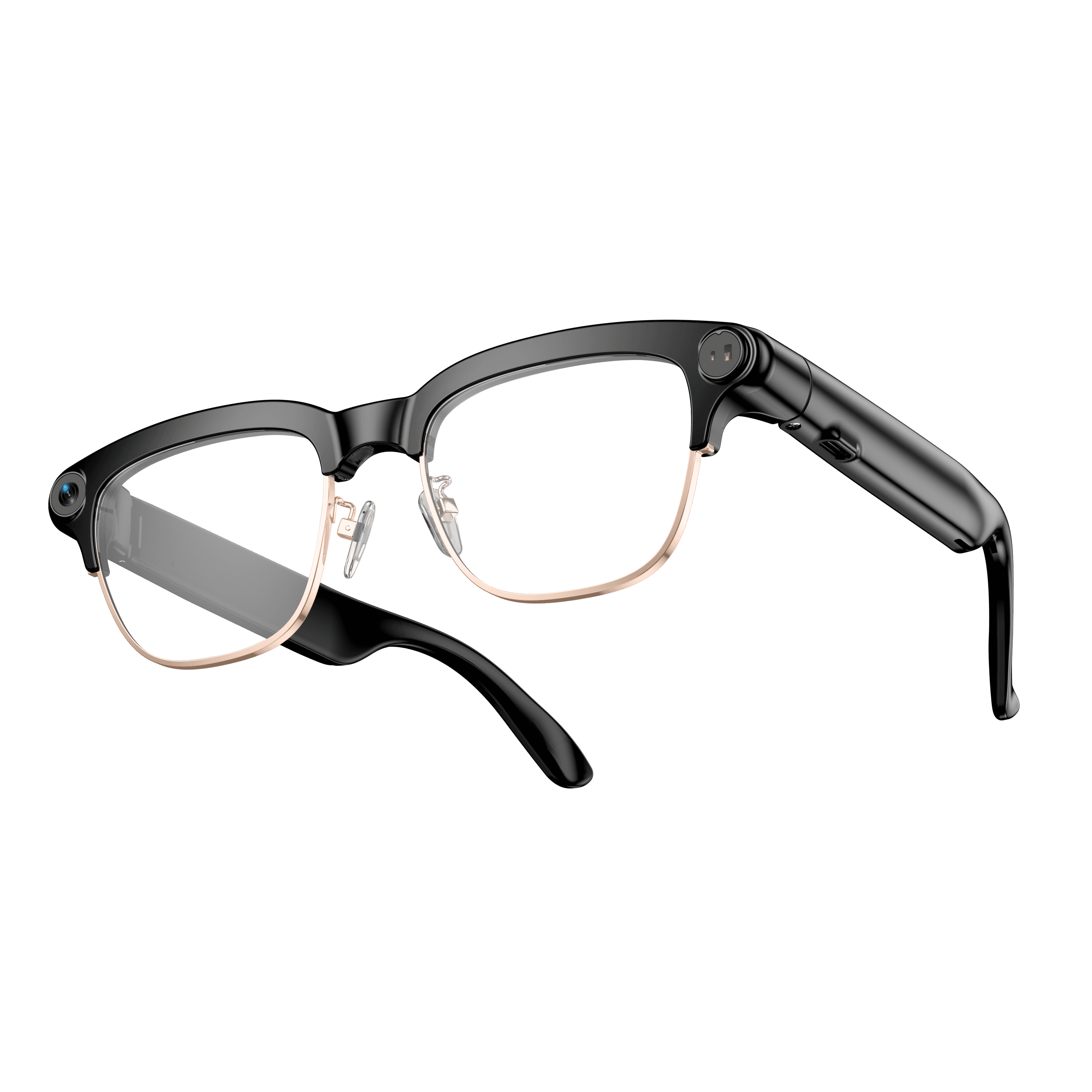 OXIVUE M08C$119 at checkout OXIVUE M08C$119 at checkout | |
|---|---|---|---|
| Camera | 8 MP | 8 MP | 8 MP |
| Weight | ~42 g | ~41 g | ~42 g |
| Water rating | — | IP65 | — |
| Lenses | Sunglasses · Photochromic · Clear | Sunglasses · Photochromic · Clear | Sunglasses · Photochromic · Clear |
| Translation | 40+ languages | 40+ languages | 40+ languages |
| Visual AI | — | Yes | — |
| Metal trim | — | — | Gold · Silver |
From each frame’s product page. Every model: open-ear audio, Bluetooth 5.4, no subscription. Full spec table
What these frames won’t do
- No prescription lenses yet, on any model. If you need vision correction all day, these can't replace your glasses.
- No display. Nothing appears in your view; you hear answers and capture photos and video.
- Open-ear speakers leak some sound at high volume and won't block out a loud train or a windy road the way sealed earbuds do.
- Translation, music, calls and the assistant need your phone nearby and connected. Translation pauses after each sentence, and only you hear the translated audio; the other person reads the reply on your phone.
- M08: no published water rating, so keep it out of heavy rain and spray.
Check these before you order: see the warranty and refund policy.