Meta troubleshooting · Charging
Meta glasses not charging? Work through Meta’s fixes in this order
Meta glasses not charging, or not turning on? On Ray-Ban Meta and Oakley Meta it usually comes down to a dirty contact, a case light you have misread, or a cable that does not suit the case. Here is what Meta’s own help centre says to try, in the order it gives the steps, with the case light colours decoded. If you are weighing a different pair instead, there is a short aside at the end.
Still deciding? Get the M02C and M08 comparison in your inbox, with your new-customer price already applied.
One email with the comparison, one follow-up a few days later. Unsubscribe any time.
1. First, is it really not charging?
Ray-Ban Meta and Oakley Meta glasses charge in one way only. Meta’s charging article says docking them in the case, with the nose bridge on the charging port, is “the only way to charge the glasses” (checked November 12, 2026). The case then charges from a USB-C cable. Two batteries, two things that can fail.
- First time? Meta says to remove the protective plastic tab from the metal charging connections on the case before the first charge.
- Seat the glasses. Nose bridge against the charging port, then close the lid. Meta says the case LED blinks to confirm the glasses are charging. If it does not blink, the glasses may not be touching the contacts (one possibility, not from Meta).
- Look in the app.If the glasses are on and paired, the Meta AI app shows their charge in the Glasses tab, and the case’s charge too while they are docked.
Which Meta glasses you own matters a little. Meta’s fix article covers Ray-Ban Meta, Oakley Meta and Meta Glasses, but its charging article says the case LEDs work differently on Meta Glasses, and its restart article says Oakley Meta Vanguard restarts differently. This guide follows the Ray-Ban Meta and Oakley Meta steps.
2. The case light: what each colour means
Press the button on the back of the case to read it. This table covers Ray-Ban Meta and Oakley Meta only; Meta Glasses cases use different LEDs. Which half applies depends on whether the glasses are in the case. If you searched for a case blinking yellow, Meta’s pages describe the colour as orange.
| Case light | Glasses docked | Case empty |
|---|---|---|
| Green, solid | Glasses fully charged | Case fully charged |
| Orange, solid | Glasses charging | Case not fully charged |
| Orange, blinking | Not listed | Case battery low |
| Red, blinking | Charging error | Charging error |
Source: Meta’s “How to charge AI glasses” help article, checked November 12, 2026. A red blinking light is the one to act on. Meta names three usual causes:
- Liquid detected. Wipe the charging contacts on both the glasses and the case, then dock again. If the case was exposed to liquid, Meta says to let it dry for 24 to 48 hours in a well-ventilated area.
- High temperature. The case or the glasses is too hot to charge safely. Move both somewhere cooler and wait.
- Incompatible charger. Use a power adapter rated 5W or greater, avoid USB hubs and low-power laptop ports, and try a different USB-C cable or adapter.
3. Glasses won’t turn on or won’t charge in the case
A pair that will not turn on may simply not be charging while docked. Meta says dried sweat, dirt and liquid can all break the contact between the nose bridge and the case. Its steps, in its order:
- Clean the contacts. Take the glasses out. With a dry, lint-free cloth or cotton swab, gently clean the gold contacts on the glasses (inside the temple arms near the hinges) and in the case (inside the cradle).
- Dock and read the lights. Place the glasses in the case, close the lid, wait 10 seconds, then open it. Green on the glasses means charged, orange means charging. No LED means the glasses may not be making contact.
- Charge for at least 30 minutes. Leave them docked, lid closed, with the case connected to power. Meta says some deeply discharged batteries need extended charging before the glasses respond.
- Try a force restart. With the glasses outside the case, press and hold the capture button on the top of the right temple arm for 16 seconds, then release. Meta says a startup chime or an LED flash means they restarted.
- Try a manual factory reset. Only if the force restart did not work: put the glasses in the case, hold the capture button, slide the power switch on the back of the case to OFF and back to ON, keep holding for 15 seconds, then release. The glasses LED should blink white.
Our how to charge Meta glasses guide covers the normal routine, including the cable and adapter ratings.
4. When the case itself won’t charge
Meta says most USB-C cables work with the case, but some power adapters do not. Two signs of an incompatible adapter: an orange or green pattern that pulses continuously on the case LED, and no charging icon in the Meta AI app. In Meta’s order:
- Try a different USB-C cable.
- If it still will not charge, try a different power adapter, USB-C or USB-A, rated 5W or greater.
- If the case LED behaves oddly, reset the case: take the glasses out, plug the case into power, and hold the button on the back for 10 seconds.
Meta’s charging article asks for a cable rated for at least 1.2A, USB-C to USB-C or USB-C to USB-A, and says USB Power Delivery is not required. If the case is the part that has failed, Meta says replacement cases, cables and adapters are sold in the Meta Store; what each case costs and fits is in our Meta glasses charger guide.
5. Restart, force restart and factory reset: what each one costs you
The first two keep your files; the third does not. Meta’s restart article says a restart will not erase photos or videos you have not yet imported and will not unpair the glasses from the Meta AI app. A force restart does not delete them or require pairing again.
- Restart (glasses on): slide the power button back, wait a few seconds, slide it forward.
- Force restart: slide the power button back, press and hold the capture button, slide the power button forward while holding, and release as soon as the status LED turns red. If it does not turn red, repeat. Meta gives this version in its restart article; the 16-second hold in section 3 comes from its charging-fix article.
- Factory reset: Meta says it erases your content and settings, so it is the last software step. If that does not help, Meta points you to Meta Store Support.
If the glasses charge but then will not reconnect to the app, that is a pairing problem, not a charging one: see Meta glasses not connecting.
6. When to stop troubleshooting and make a warranty claim
Meta says that once you have completed every step and the problem persists, the glasses may have a hardware fault. Its three signs:
- The glasses LED shows solid red and will not change.
- There is no LED activity on the glasses at all after 30 or more minutes of charging.
- The glasses power on in the case but turn off immediately when removed.
For a claim, Meta names the EssilorLuxottica warranty portal and Ray-Ban customer support, and asks you to have the serial number (printed inside the left temple arm) and proof of purchase ready. Who handles which model, and what Meta charges, is in Meta glasses repair. All of the above was checked on Meta’s site on November 12, 2026 and may change; the articles were marked as recently updated.
7. If you are shopping for a pair with no case
OXIVUE publishes this page and sells competing camera glasses, so weigh this section accordingly. They are not Meta glasses: no display, no prescription lenses, no Meta AI. What matters here is the charging design. The M02C uses magnetic charging rather than a docking case, weighs about 41 g, is rated IP65 (dust and water jets, not immersion) and lists 7 hours of listening and 4 hours of calls. It is $109 at checkout (listed $159). The M08 is about 42 g with the same 7 hour listening and 4 hour call figures, $99 at checkout (listed $149).
The trade-off is plain: there is no case to top the glasses up on the go. If that is what you want, a case-based pair is the right shape. Compare every model on the comparison page.
Shipping, refunds and warranty. Free shipping from $99. US orders typically arrive in 5–9 business days; international orders take 9–14 business days after shipment, and import VAT or duties outside the US are paid by the recipient. No refunds except transit damage (replaced or refunded); faults are repaired or replaced under the 2-year warranty; change of mind and unmet expectations are not refundable. See the shipping policy and support.
Frequently asked questions
How do I know if my Meta glasses are charging?
Check the Meta AI app or the case light. Meta says the glasses show their charge in the app's Glasses tab when connected. With the glasses docked, press the button on the back of the case: green solid means fully charged, orange solid means charging and red blinking means a charging error. Meta also says the case LED blinks when you close the lid to confirm charging has started (checked November 12, 2026).
Why won't my Meta glasses charge when the case is full?
Usually the connection, not the battery. Meta says the nose bridge sitting on the charging port is the only way to charge Ray-Ban Meta and Oakley Meta glasses, and that dried sweat, dirt or liquid can interfere with it. Clean the gold contacts on the glasses and in the case with a dry, lint-free cloth or cotton swab, dock them, close the lid, and read the LEDs after 10 seconds. A full case does not help if the glasses are not touching the contacts.
Why is my Meta glasses case blinking red?
A red blinking case light is a charging error, and Meta lists three common causes: liquid on the contacts, a case or glasses that is too hot, or a cable or adapter that is not compatible. Wipe the contacts, move everything somewhere cooler, or switch to a different USB-C cable and a power adapter rated 5W or greater. If the case got wet, Meta says to let it dry completely for 24 to 48 hours in a well-ventilated area.
Why does my Meta glasses case show no light?
Start with the contacts. Meta says that if the LED does not light up at all when you close the case, you should clean the charging contacts on the nose bridge and in the case and dock the glasses again. If it is the case itself that will not charge, try another USB-C cable, then another power adapter. Meta also describes resetting the case: take the glasses out, plug the case in, and hold the button on the back for 10 seconds.
Will a restart or force restart delete my photos?
No. Meta says a restart will not erase photos or videos you have not imported yet and will not unpair the glasses, and a force restart does not delete them or require pairing again. A factory reset is different: Meta says it erases your content and settings, so it comes last. Import anything you want to keep first, if the glasses are working well enough to do it.
Can I charge Meta glasses without the case?
Not according to Meta. Its charging article says that, for Ray-Ban Meta and Oakley Meta glasses, docking them in the case with the nose bridge on the charging port is the only way to charge the glasses. The case itself charges from a USB-C cable and a power adapter. That is why a lost or damaged case matters, and why the case is the first thing to check when charging fails.
Why did my Meta glasses not come with a charger?
Meta's help articles do not give a reason, so we will not guess. What they say is that the case charges from a USB-C cable and a USB-C or USB-A power adapter you connect yourself. The cable should be rated for at least 1.2A and the adapter for 5W or greater; USB Power Delivery is not required. Meta says replacement charging cases, USB-C cables and power adapters are sold in the Meta Store.
When is it a warranty problem rather than a charging fix?
After you have worked through the steps. Meta says to go to a warranty claim if the glasses LED stays solid red and will not change, if there is no LED activity at all after 30 or more minutes of charging, or if the glasses power on in the case but switch off the moment you take them out. Have the serial number and proof of purchase ready. Meta names the EssilorLuxottica warranty portal and Ray-Ban customer support for claims.
OXIVUE frames side by side
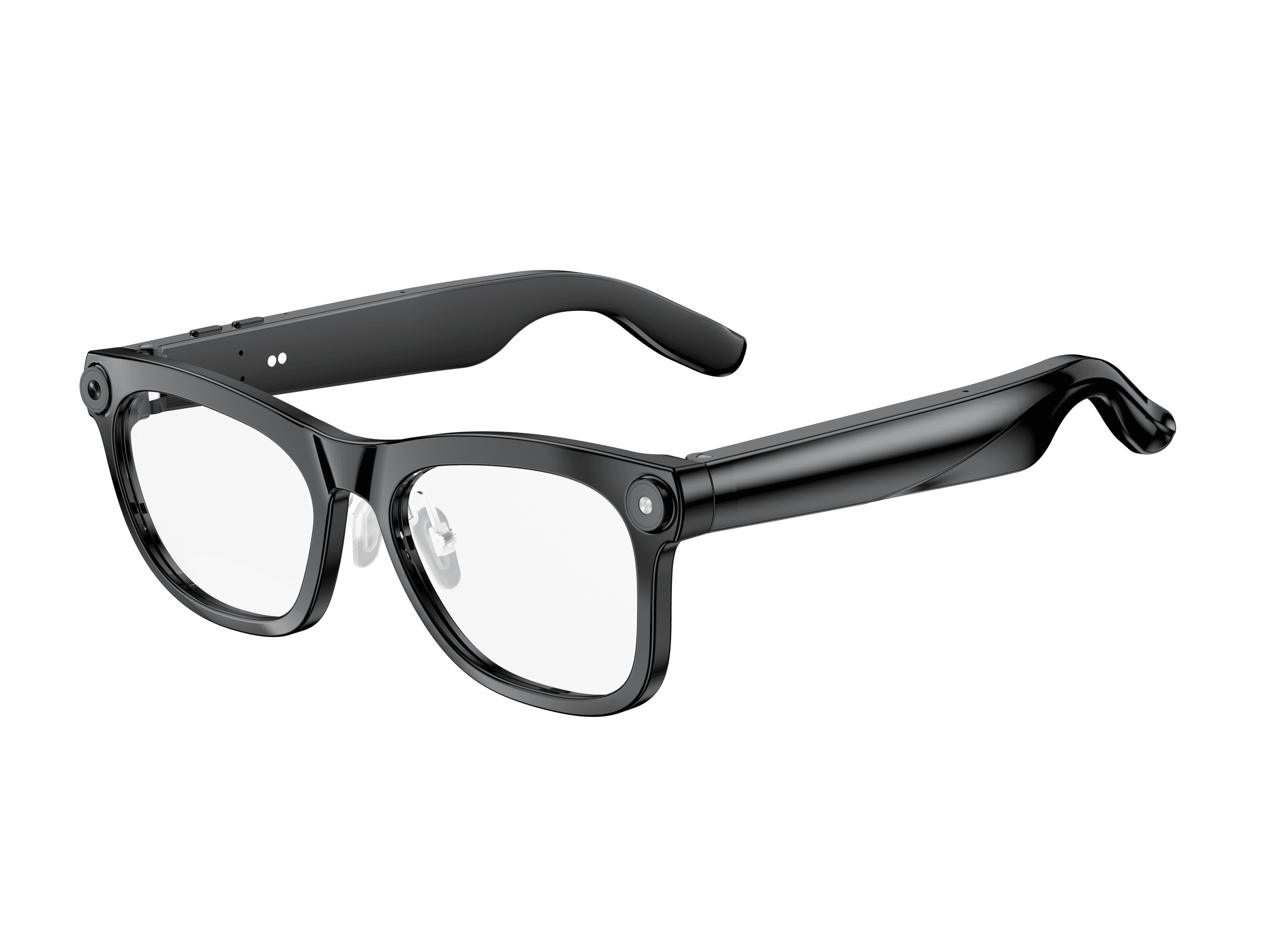 OXIVUE M02C$109 at checkout | 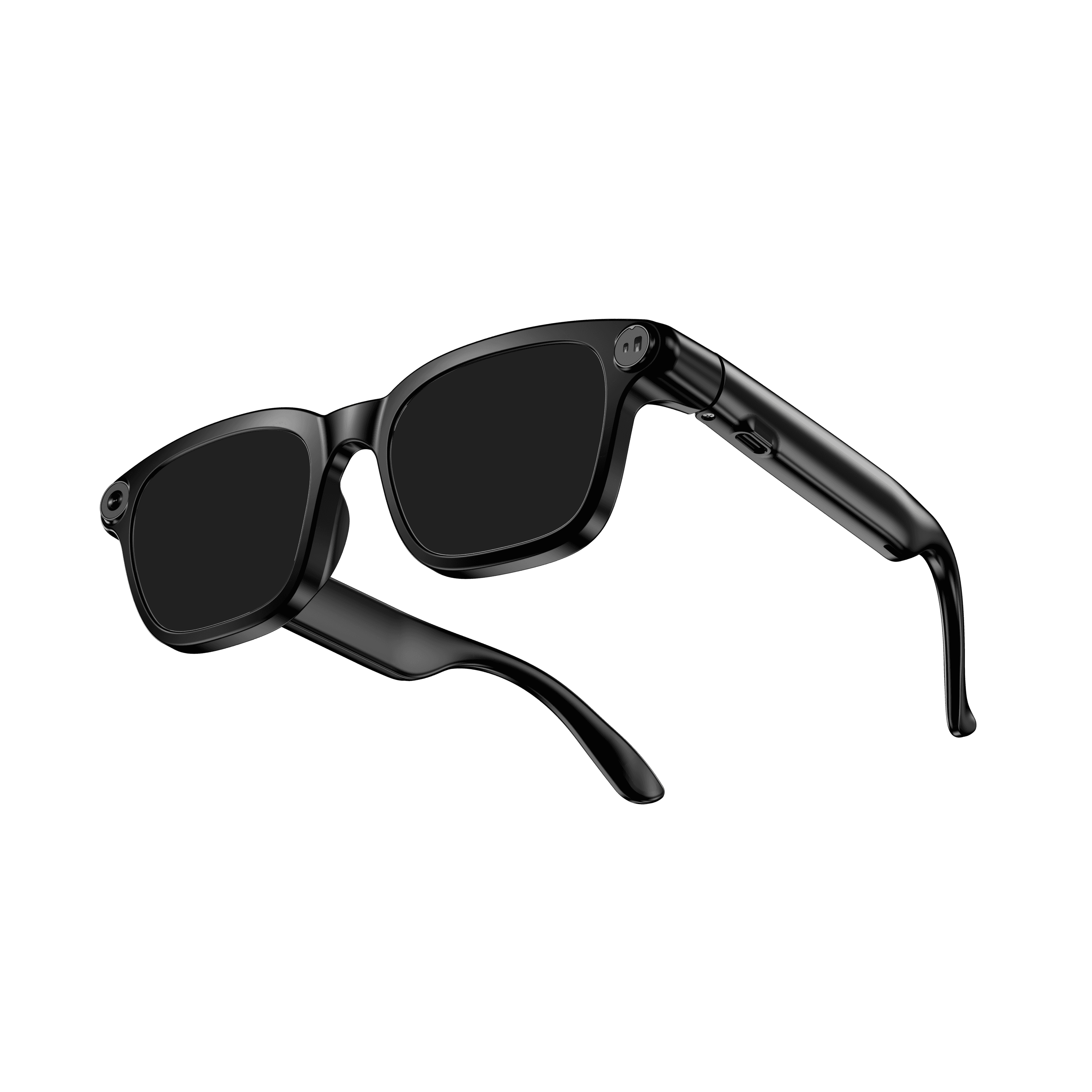 OXIVUE M08$99 at checkout | |
|---|---|---|
| Camera | 8 MP | 8 MP |
| Weight | ~41 g | ~42 g |
| Water rating | IP65 | — |
| Lenses | Sunglasses · Photochromic · Clear | Sunglasses · Photochromic · Clear |
| Translation | 40+ languages | 40+ languages |
| Visual AI | Yes | — |
From each frame’s product page. Every model: open-ear audio, Bluetooth 5.4, no subscription. Full spec table
What these frames won’t do
- No prescription lenses yet, on any model. If you need vision correction all day, these can't replace your glasses.
- No display. Nothing appears in your view; you hear answers and capture photos and video.
- Open-ear speakers leak some sound at high volume and won't block out a loud train or a windy road the way sealed earbuds do.
- Translation, music, calls and the assistant need your phone nearby and connected. Translation pauses after each sentence, and only you hear the translated audio; the other person reads the reply on your phone.
- M02C: IP65 resists dust and water jets, not immersion. No swimming, no saltwater.
- M08: no published water rating, so keep it out of heavy rain and spray.
Check these before you order: see the warranty and refund policy.