Meta setup · 2026
How to unpair Meta glasses, and move them to a new phone or owner
Unpairing Meta glasses takes a few taps in the Meta AI app, plus one Bluetooth step many owners miss. The harder cases are a new phone, a second Meta Account, and glasses bought second-hand that are still tied to someone else. This page works through each one using Meta’s own help pages, dated, and says plainly where those pages go quiet. OXIVUE sells its own camera glasses and publishes this page; the menu paths below are Meta’s.
Still deciding? Get the M08 and M02C comparison in your inbox, with your new-customer price already applied.
One email with the comparison, one follow-up a few days later. Unsubscribe any time.
1. Unpair, forget, factory reset: what each one does
Three different actions get called “unpairing”, and mixing them up is why so many threads on this topic end in confusion. Unpairing in the Meta AI app releases the glasses from that app. Forgetting them in the phone’s Bluetooth list removes the phone’s own record of them. A factory reset wipes the glasses back to factory settings. Meta’s pages (checked November 12, 2026) describe all three, and the table below keeps them apart.
| Action | What Meta says it does | Use it when |
|---|---|---|
| Unpair in the Meta AI app | Stops using the glasses with that phone; “won’t change or erase any settings” | Switching phones, or stepping away from the glasses |
| Forget in phone Bluetooth settings | Meta says you “may also need” this to finish unpairing | Straight after unpairing, and before pairing again if the glasses still show in the list |
| Factory reset the glasses | Returns them to factory settings, deletes all photos and videos on them, and you pair again afterwards | Before someone else pairs them to their account, or as the last pairing fix |
| Factory reset the charging case | Glasses out, hold the back button for more than 16 seconds | When the case LED never turns blue for pairing |
Everything below is for Ray-Ban Meta and Oakley Meta glasses; Meta’s reset page also has a separate tab for other Meta glasses. Meta says the Meta Ray-Ban Display glasses and their charging case reset differently, so follow Meta’s separate page for those.
2. Unpair in the Meta AI app
The unpair path is six taps, per Meta’s pairing page (checked November 12, 2026). From the Meta AI app, tap Glasses in the top right, then Device settings. If you have more than one device paired, swipe left or right to pick the one you want first. Under Glasses, tap your glasses, then General, then Unpair glasses, and confirm with Unpair.
Meta’s note on that page is the part to read twice: unpairing “won’t change or erase any settings”, but you “may also need to select Forget for your AI glasses in your phone’s Bluetooth settings to finish unpairing.” Do that second step every time. The glasses leaving the app and the phone still holding a Bluetooth entry for them are two separate states, and Meta’s pairing fixes tell you to forget a leftover entry before you pair again.
3. Forget the glasses in Bluetooth settings
Open your phone’s Bluetooth list, find the glasses and choose Forget. On an iPhone the list is under Settings; on Android, Google’s help page (checked November 12, 2026) says to pull down from the top edge of the screen, long-press the Bluetooth tile, tap the gear beside the glasses (under Saved devices, then See all, if they are not listed) and choose Forget. Google’s page adds that devices stay paired until you unpair them, which is why the entry does not clear itself.
This step matters for pairing as well as unpairing. Meta’s fix-pairing page says to always start pairing from the Meta AI app, not from the phone’s Bluetooth settings, and that if the glasses show up in the phone’s Bluetooth connections you should forget the connection and then pair again from the app. If you are moving phones, do the forget on the old phone and check the new phone’s list too.
4. Move Meta glasses to a new phone
Meta glasses pair to the Meta AI app on one phone at a time. Meta’s multiple-device page says the app supports up to 7 pairs of glasses, but you can only pair glasses to one Meta Account at a time and to the Meta AI app on one mobile phone at a time. So the order matters, and owners asking how to change phones smoothly are really asking about that order.
- Import first.A factory reset deletes the photos and videos on the glasses, and Meta’s pages do not say what unpairing does to files, so move anything you want before you start.
- Unpair on the old phone in the Meta AI app, then forget the glasses in its Bluetooth settings.
- Set up the new phone. Install the Meta AI app from the App Store or Google Play, log in with your Meta Account and turn Bluetooth on.
- Put the glasses in pairing mode. Turn them on, put them in the case and wait for the case LED to flash blue. If it does not, hold the button on the back of the case for at least 5 seconds.
- Add them from the app. Tap Glasses in the top right, then Add device, and follow the prompts.
If the new phone will not take them, Meta names “an earlier pairing to a different phone” as one of the usual causes and ends its fix list with a factory reset for glasses “previously paired to a different phone.” Our fixes for Meta glasses that will not connect walks the rest of the list in Meta’s order, and the guide to connecting Meta glasses to an iPhone covers first-time setup and the iOS requirement.
5. Switch Meta Accounts
Meta says AI glasses pair with one valid Meta Account at a time, and that you need a Meta Account to use them at all. The account can be set up with an email address, Instagram or Facebook. To switch, unpair and forget as above, then log in to the Meta AI app with the other account and pair again from the case. If the glasses still behave as if they belong to the old account, the documented route is the factory reset in the next section.
One practical point: Meta’s account page says you can add or remove an account from Accounts Center alongside your Facebook and Instagram accounts. If you signed up through one of those, that is where the account link lives, not in the glasses.
6. Selling, gifting, or buying second-hand
This is the situation behind the longest threads on the results page: glasses bought second-hand and “still linked to the previous owner’s Meta account.” Meta’s wording is direct. The glasses can only pair with one Meta Account at a time, and you will need to factory reset them before someone else can pair them to their account.
If you are the seller or giver, do it in this order: import your photos, unpair in the app, forget in Bluetooth, then factory reset. Per Meta (checked November 12, 2026), with the glasses out of the case, charged and on, close both arms, press the capture button five times until the LED turns orange, then press and hold it and release when the LED flashes. The reset deletes every photo and video on the glasses, which is the point when you hand them on.
If you are the buyer, check the glasses are charged, run the same factory reset, and then pair them from the app as a new device. If the case LED never turns blue, Meta’s fix is to reset the case: take the glasses out and hold the button on the back for more than 16 seconds.
7. Unpairing without the app
“How to unpair Meta glasses without the app” is one of the related searches, and the honest answer is that Meta’s help pages do not describe an app-free unpair. What they do describe that needs only the glasses is the factory reset, done with the capture button. If you lost the old phone, cannot log in, or bought the glasses from someone who has vanished, the reset is the documented step, followed by pairing from the app on your own phone. If that still fails, Meta’s pairing-fix page ends with contacting Meta Store Support.
One caution: a factory reset takes the photos and videos on the glasses with it, so if you have not imported them, that is a cost to weigh. If you still have the old phone, also forget the glasses in its Bluetooth list.
8. If your glasses are not Meta’s
Everything above applies to Meta’s glasses and the Meta AI app. OXIVUE glasses use a free companion app of their own and do not need a Meta, Facebook or Instagram account, so there is no Meta Account to unlink. The M08 is $99 at checkout (listed $149): an 8 MP camera, about 42 g, 7 hours of listening and 4 hours of calls, three lens choices, and no published water rating. The M02C is $109 at checkout (listed $159), rated IP65 for dust and water jets, not immersion, with a Sony IMX219 8 MP sensor and voice-activated visual AI that can describe what you are looking at. Neither has a display or takes prescription lenses, and neither is a Meta product. For the wider question of what you need a phone for, see do smart glasses need a phone, and for glasses that skip a social login altogether, see camera glasses that don’t need a social login.
Shipping, refunds and warranty. Free shipping from $99. US orders typically arrive in 5–9 business days; international orders take 9–14 business days. OXIVUE does not offer refunds except for an order damaged in transit, which is replaced or refunded. Faults after delivery are covered by the 2-year warranty through repair or replacement. None of our frames take prescription lenses. Compare every model on the comparison page.
Frequently asked questions
How do I unpair Meta glasses?
In the Meta AI app, tap Glasses, then Device settings, then your glasses, then General, then Unpair glasses and Unpair (Meta's help page, checked November 12, 2026). Meta adds that you may also need to select Forget for the glasses in your phone's Bluetooth settings to finish. Unpairing alone is not a factory reset, and Meta says it won't change or erase any settings.
How to disconnect from Meta AI glasses?
Meta's help pages describe unpairing rather than a separate disconnect switch. Its unpair page says you can unpair the glasses "for example if you want to use a different phone" and that this won't change or erase settings, so unpairing in the Meta AI app is the documented way to stop using the glasses with that phone. To use them again, you pair them again from the app, with the case LED flashing blue.
How do I connect Meta glasses to a new phone?
Unpair them on the old phone first, because Meta says glasses pair to the Meta AI app on one phone at a time. Then install the Meta AI app on the new phone, log in, put the powered-on glasses in the case until the LED flashes blue, and tap Glasses, then Add device (checked November 12, 2026). If they refuse, Meta's fix list ends with a factory reset for glasses previously paired to a different phone.
Do I have to factory reset to switch phones?
Not as a first step. Meta lists a factory reset last in its pairing fixes, after updating the app, charging, restarting pairing mode, forgetting the Bluetooth entry and reinstalling the app, and it names glasses that were "previously paired to a different phone" as one reason to reset. A factory reset deletes all photos and videos on the glasses, so import anything you want first.
Does unpairing delete my photos and videos?
Meta's unpair page says unpairing won't change or erase any settings, and it says nothing about deleting captures. A factory reset is different: Meta says it deletes all the photos and videos on your glasses and that you pair again afterwards. Because Meta's pages do not say what happens to files already imported to the phone, check your gallery before you unpair or reset.
How do I unpair before selling or giving the glasses away?
Unpair in the app, forget the glasses in Bluetooth, then factory reset them. Meta says the glasses pair with one Meta Account at a time and that you must factory reset them before someone else can pair them to their account (checked November 12, 2026). Import your photos first, because the reset deletes everything stored on the glasses.
Can I unpair Meta glasses without the app?
Meta's help pages do not describe an unpair that works without the app. What they do document is the factory reset, done with the capture button on the glasses themselves, and Meta says a factory reset is needed before someone else can pair them to their account. If you still cannot get the glasses free of an old account, Meta's pairing-fix page points to Meta Store Support as the last step.
Do OXIVUE glasses unpair the same way?
No. The menu paths in this guide are Meta's and apply to Meta's glasses and Meta AI app only. OXIVUE glasses use their own free companion app and do not need a Meta, Facebook or Instagram account. The M08 is $99 at checkout (listed $149) and the M02C $109 (listed $159). They have no display and take no prescription lenses.
OXIVUE frames side by side
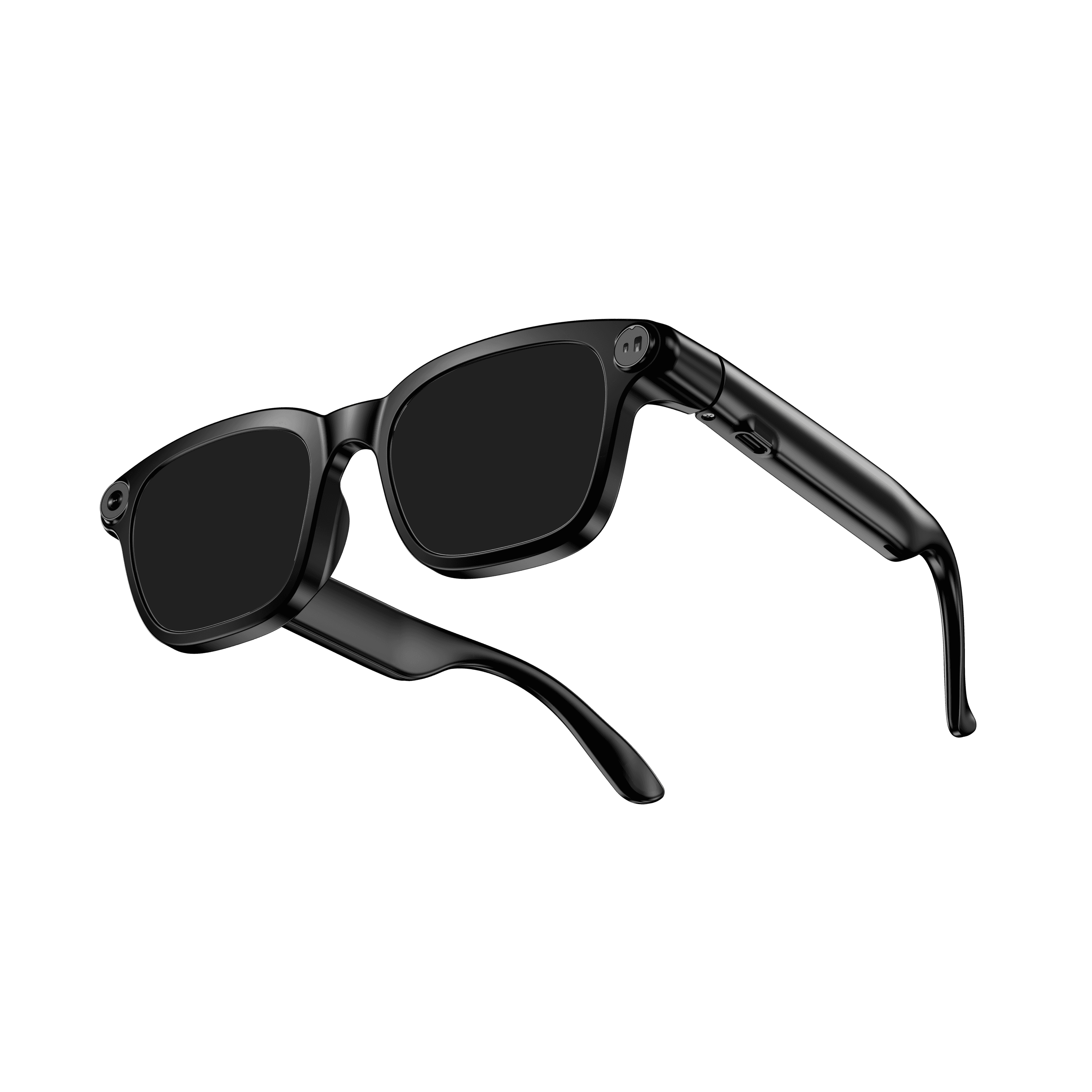 OXIVUE M08$99 at checkout | 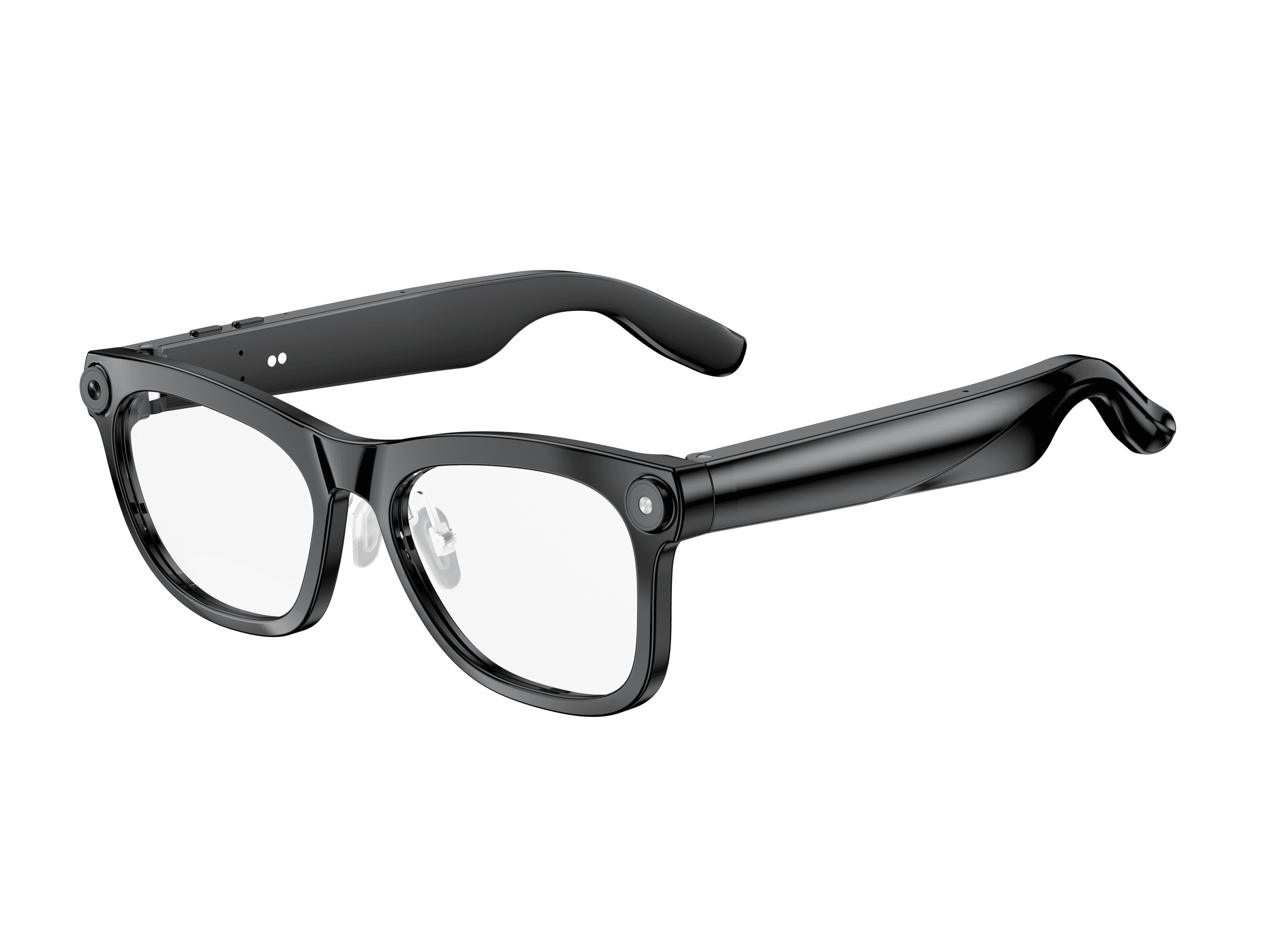 OXIVUE M02C$109 at checkout | |
|---|---|---|
| Camera | 8 MP | 8 MP |
| Weight | ~42 g | ~41 g |
| Water rating | — | IP65 |
| Lenses | Sunglasses · Photochromic · Clear | Sunglasses · Photochromic · Clear |
| Translation | 40+ languages | 40+ languages |
| Visual AI | — | Yes |
From each frame’s product page. Every model: open-ear audio, Bluetooth 5.4, no subscription. Full spec table
What these frames won’t do
- No prescription lenses yet, on any model. If you need vision correction all day, these can't replace your glasses.
- No display. Nothing appears in your view; you hear answers and capture photos and video.
- Open-ear speakers leak some sound at high volume and won't block out a loud train or a windy road the way sealed earbuds do.
- Translation, music, calls and the assistant need your phone nearby and connected. Translation pauses after each sentence, and only you hear the translated audio; the other person reads the reply on your phone.
- M08: no published water rating, so keep it out of heavy rain and spray.
- M02C: IP65 resists dust and water jets, not immersion. No swimming, no saltwater.
Check these before you order: see the warranty and refund policy.