Meta glasses · How-to
How to record on Meta glasses, and where the recordings end up
Recording on Meta glasses takes a button press or a voice command. The part people get stuck on comes afterwards: where the files are, how to get them onto a phone, how long a clip can run and how to delete them. Everything here is taken from Meta's own pages, checked November 12, 2026, with the model differences Meta states.
Still deciding? Get the M08 and M02C comparison in your inbox, with your new-customer price already applied.
One email with the comparison, one follow-up a few days later. Unsubscribe any time.
1. Take a photo
The quickest way to take a photo is the capture button. Meta’s camera page says to tap the capture button on your AI glasses, and the white LED will blink to confirm your shot. For a hands-free photo, it says to just say “Hey Meta, take a photo” (checked November 12, 2026).
The button sits on the frame, and where depends on the model. A picture on Meta’s vlogging page shows a wearer pressing the right side of the frame to record. If you are not sure on your pair, check the quick-start guide in the box, or use the voice command instead.
2. Start and stop a video
To record a video, press and hold instead of tapping. Meta’s POV guide says to hold the capture button until the white LED lights up, and to tap the button once more to end the recording; the LED then turns off and, in Meta’s words, the video “saves locally to the glasses’ internal storage” (checked November 12, 2026).
By voice, the same guide gives “Hey Meta, take a video” to start and “Hey Meta, stop” to end it. Meta’s vlogging page words the start command as “Hey Meta, start recording,” so if one phrasing is not picked up, try the other.
| To do this | Capture button | Voice |
|---|---|---|
| Take a photo | Tap once; the white LED blinks | “Hey Meta, take a photo” |
| Start a video | Hold until the white LED lights up | “Hey Meta, take a video” or “Hey Meta, start recording” |
| Stop a video | Tap once more | “Hey Meta, stop” |
| Slow motion | — | “Hey Meta, record in slow motion” |
| Hyperlapse | — | “Hey Meta, start a hyperlapse” |
Source for every row: Meta’s POV guide, camera page and vlogging page, checked November 12, 2026. For the power switch, touchpad and calls, see how to use Meta glasses.
3. Hands-free options
Voice is the hands-free route. Meta’s camera page opens with “Say, ‘Hey Meta’ to start recording video or snap photos without lifting a finger.” Two extra modes are voice only. Slow motion is “Hey Meta, record in slow motion” or “Hey Meta, take a slo-mo video,” and Meta says it is available on its newest models. Hyperlapse is “Hey Meta, start a hyperlapse,” which Meta says is supported on Oakley Meta HSTN, Oakley Meta Vanguard and Ray-Ban Meta (Gen 1 and Gen 2).
Meta’s camera page also mentions autocapture, which it says can record short video highlights automatically as you go. That is a setting, not the default behaviour of every pair, so if you never want a capture you did not start, look at what is switched on in the Meta AI app.
Voice also reaches the files afterwards. Meta’s vlogging page gives “Hey Meta, send my last picture to [contact name]” and “Send a video to [contact name] on WhatsApp.”
4. How long a clip can run
Meta states the default clearly: by default, your AI glasses record clips for up to 30 seconds. With the Meta AI mobile app you can extend this to 3 minutes for most devices, and up to 5 minutes with Oakley Meta Vanguard (POV guide, checked November 12, 2026). Meta’s camera page adds that you can adjust the video duration anytime in the app.
Two things follow. If a clip stops sooner than you expected, the setting is the first place to look, not the glasses. And the limit is per clip, so a longer moment is a series of clips. This page does not cover battery or total recording time on a charge; Meta’s own pages are the source for your model.
5. What the white LED does
The capture LED is the one signal other people get. Meta describes it as a white light that blinks to signify when content is being captured for your gallery. For a photo it blinks briefly, while for a video it continues to blink for as long as you are recording. Meta’s POV guide describes the video light as lit up instead of blinking, so treat “on while it records” as the point, and the exact pattern as something that can differ by model (Meta pages checked November 12, 2026).
Meta says the capture LED has no off switch. It also says that on Meta’s second-generation glasses and later, covering or disabling the LED automatically disables the camera, and that no photos or videos can be taken until the light is unblocked (Meta, July 7, 2026, updated July 23, 2026). Its camera page adds that if the LED is covered you will be notified to clear it before recording. So on those models a piece of tape over the light does not give you a quiet camera; it gives you no camera. Meta’s pages we read do not say the same for first-generation pairs.
6. Where recordings are stored
Recordings live on the glasses until you move them. Meta says photos and videos you capture for your gallery are stored privately on your glasses, and that you choose when to import them to your phone. Its vlogging page says it plainly: all your captured media is stored on your AI glasses until you import it in the Meta AI app. Meta’s camera page describes the storage as the glasses’ internal memory on Ray-Ban Meta (Gen 2) and Oakley Meta HSTN and Vanguard.
That is why a freshly recorded clip does not show up in your phone’s photos by itself. The files are on the frames, and the phone only sees them after an import.
7. Import, view and share
Importing is done in the Meta AI app, with the glasses connected. Meta’s POV guide says that most Android (13+) and iOS phones have auto-import on by default, and its vlogging page describes setting up auto-import to automatically send all photos and videos to the app. To import manually, Meta’s POV guide gives these steps: turn on Bluetooth and pair your glasses with your phone using the Meta AI mobile app; open the app and tap Menu in the bottom right; if your glasses have unimported media, tap the Import button next to Gallery to transfer your clips (Meta POV guide, checked November 12, 2026). Meta renamed the app that older guides call Meta View; its help centre says the Meta View app is now the Meta AI mobile app. After importing, Meta says your videos and photos will appear in your phone’s photo app, saved to your phone’s gallery just like any other photo or video you take.
From there you have two sets of tools. In the Meta AI app, Meta says your glasses sync with the app, where you can review, edit and share in a few taps; its POV guide says to open Gallery in the app, select the video or photo, tap Share and choose the app or contact. In your phone’s own gallery, they behave like any other file, so moving them to a computer or a cloud folder is the ordinary phone routine. If your phone is an iPhone, our connect Meta glasses to iPhoneguide covers the pairing that has to exist first. Menu names can change between app versions, so if your screen differs from the steps above, follow the app’s own Gallery screen.
8. Delete recordings
Meta’s camera page says you can manage or delete photos, videos and voice interactions anytime in the Meta View app or Account Center. Given the rename, read that as the Meta AI app today. What Meta keeps and for how long, voice interactions included, is in our Meta glasses privacy summary.
One caution: a clip can exist in more than one place after an import, on the glasses, in the app and in your phone’s gallery, and Meta’s pages we read do not spell out how deleting in one place affects the others. After deleting something that matters, check each place yourself.
9. Consent before you record
A white light helps, but it does not replace asking. Photographing a scene is one thing; recording a conversation is another, and audio is where US state wiretap laws bite, with some states requiring everyone in a private conversation to agree. Ask before you record people, especially children, and follow venue rules. Our recording laws by state guide has more. This is general information, not legal advice.
10. If you want a touch-to-capture pair instead
Everything above is how Meta AI glasses behave. OXIVUE frames work differently. On the M08 ($99 at checkout, listed $149) and the M02C ($109 at checkout, listed $159), a photo or clip starts only with a deliberate touch on the temple. There is no display, so files go to the free companion app on your phone, and the app does not need a Meta, Facebook or Instagram account. Neither frame takes prescription lenses. The M02C is rated IP65 (dust-tight, water jets, not immersion) and adds voice-activated visual AI that can describe what you are looking at. The M08 and M02C weigh about 42 g and 41 g. This page does not quote OXIVUE clip lengths or storage, because we do not publish them. See every model compared or smart glasses without a Meta account.
Shipping, refunds and warranty.Free shipping from $99. US orders typically arrive in 5–9 business days; international orders take 9–14 business days. OXIVUE does not offer refunds except for an order damaged in transit, which is replaced or refunded. Faults after delivery are covered by the 2-year warranty through repair or replacement. None of our frames take prescription lenses. Compare every model on the comparison page.
Frequently asked questions
Where are Meta glasses videos stored?
On the glasses first. Meta says photos and videos you capture are stored privately on your glasses, and its vlogging page says the media stays there until you import it in the Meta AI app. After you import, they are saved to your phone's gallery like any other photo or video. Meta's POV guide describes the glasses copy as saved locally to internal storage (Meta pages checked November 12, 2026).
Where is the capture button on Meta glasses?
On the frame itself, and the spot depends on the model. A picture on Meta's vlogging page shows a wearer pressing the right side of the frame to record (checked November 12, 2026). Rather than guess, look at the quick-start guide that came with your pair, or ask the glasses to record by voice instead, which needs no button at all.
Are the Meta glasses always recording?
Not according to Meta's pages. They describe capture as something you start with the button or by voice, and say the white capture LED blinks while content is captured. Meta also describes an autocapture feature that can record short video highlights automatically as you go, so check which features are switched on in your app (Meta pages checked November 12, 2026). If you want to know whether someone else's pair is recording, asking is the only test that always works.
How do I save videos from Meta glasses to my phone?
Import them. Open the Meta AI app with your glasses connected, import the captures, and they appear in your phone's photo app. Meta's vlogging page also describes an auto-import setting that sends all photos and videos to the app automatically. Once a clip is in your phone's gallery you can move it to a computer the same way you would any phone video (Meta pages checked November 12, 2026).
Can I record longer than 30 seconds on Meta glasses?
Yes, on most models. Meta's POV guide says clips are recorded for up to 30 seconds by default and can be extended in the Meta AI mobile app to 3 minutes for most devices, and up to 5 minutes with Oakley Meta Vanguard. Meta's capture page says you can adjust the video duration anytime in the app. Which limits apply to your pair depends on the model (checked November 12, 2026).
How do I stop a recording on Meta glasses?
Tap the capture button once more, or say "Hey Meta, stop." Meta's POV guide gives both: tap the button once more to end the recording, and the LED turns off, or use the voice command and the LED turns off. If the clip reaches the time limit you have set, it ends on its own, so you do not have to catch it (checked November 12, 2026).
Can I turn off the recording light on Meta glasses?
No. Meta says the capture LED has no off switch. It also says that on Meta's second-generation glasses and later, covering or disabling the LED automatically disables the camera, and that no photos or videos can be taken until the light is unblocked. The light is there so people nearby can tell when a capture is happening (Meta, July 7, 2026, updated July 23, 2026).
Do OXIVUE glasses record the same way?
No. OXIVUE M08 and M02C start a photo or clip only with a deliberate touch on the temple. Files go to the free companion app on your phone, since the frames have no display. The M08 is $99 at checkout (listed $149) and the M02C is $109 (listed $159). Neither takes prescription lenses.
OXIVUE frames side by side
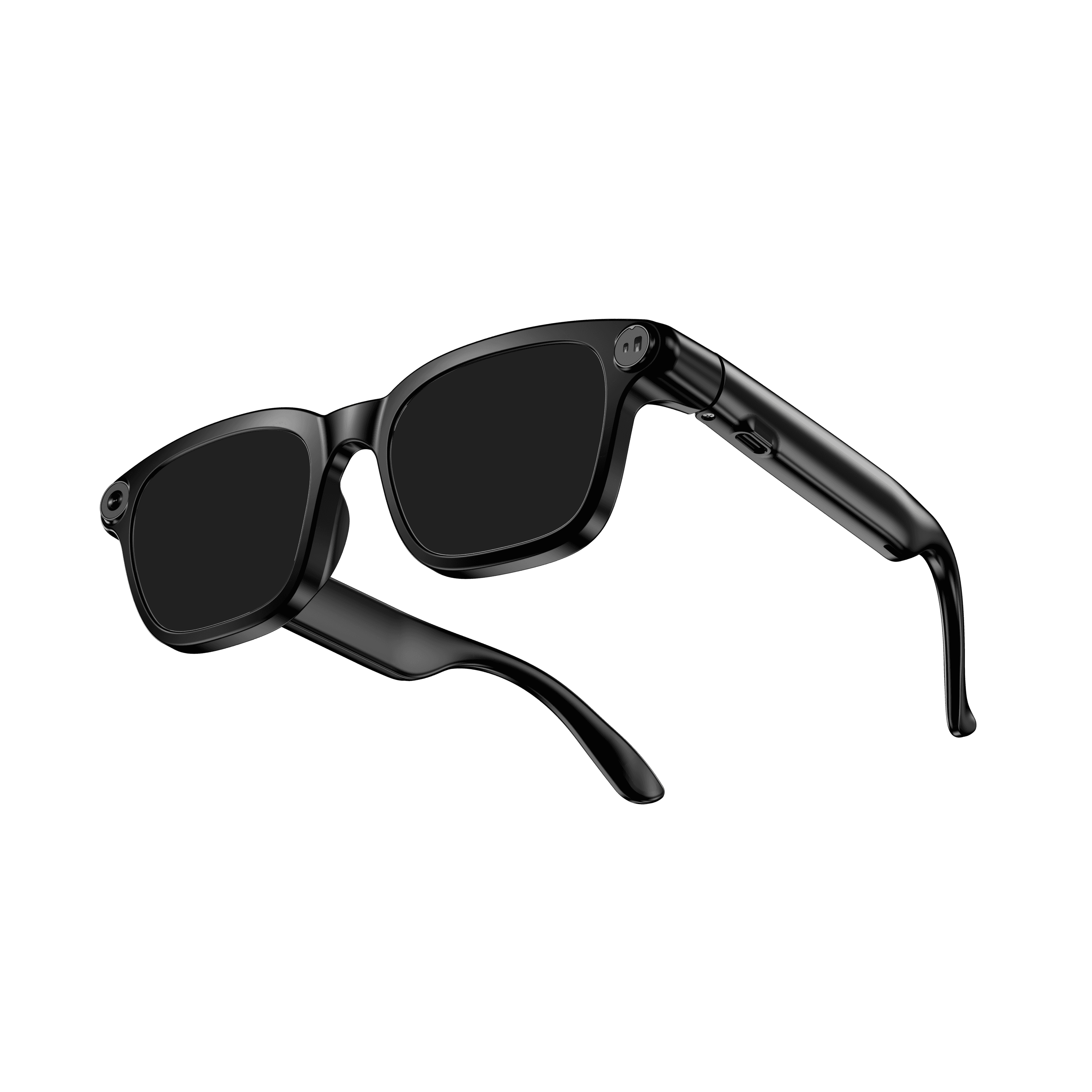 OXIVUE M08$99 at checkout | 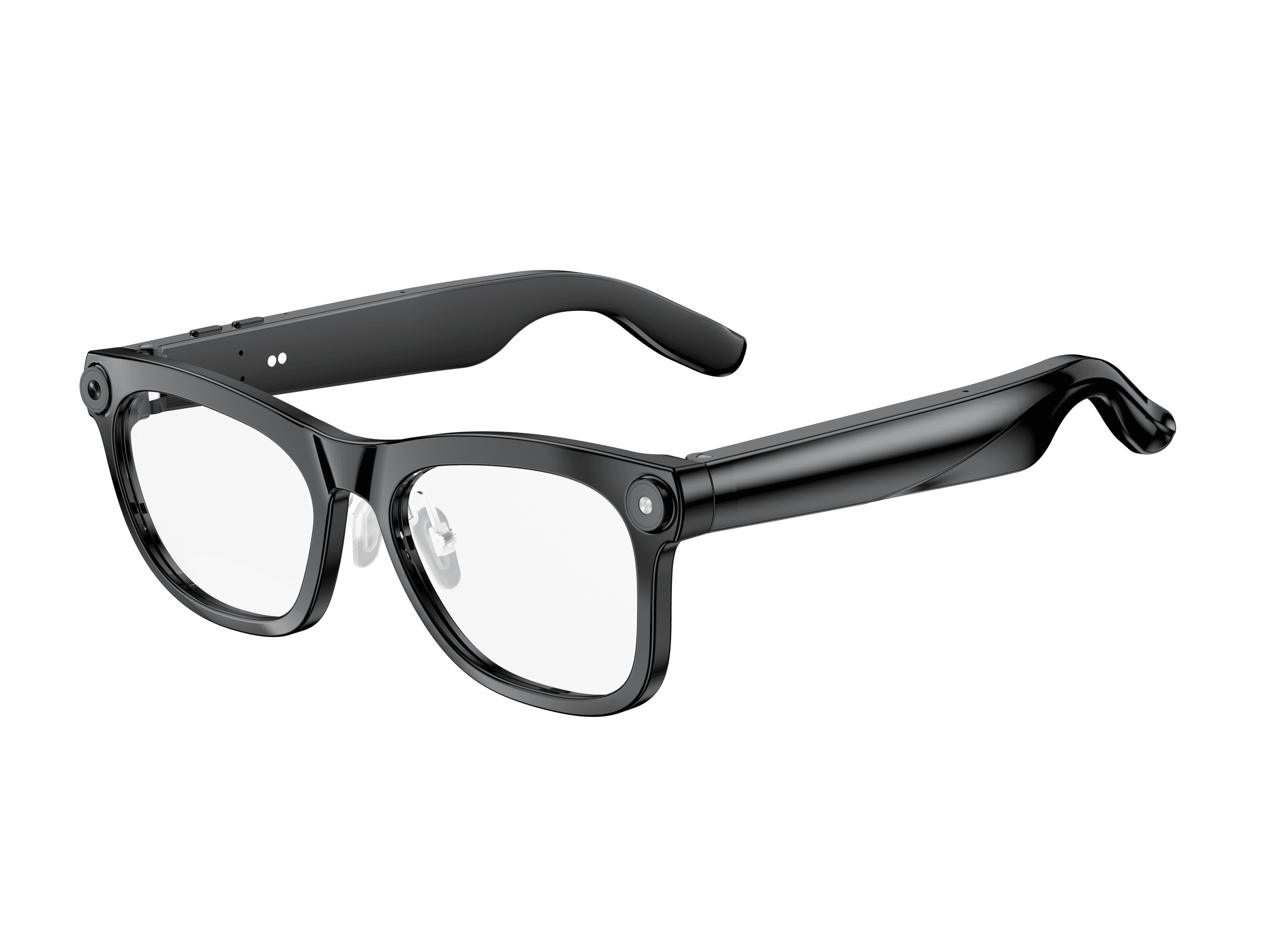 OXIVUE M02C$109 at checkout | |
|---|---|---|
| Camera | 8 MP | 8 MP |
| Weight | ~42 g | ~41 g |
| Water rating | — | IP65 |
| Lenses | Sunglasses · Photochromic · Clear | Sunglasses · Photochromic · Clear |
| Translation | 40+ languages | 40+ languages |
| Visual AI | — | Yes |
From each frame’s product page. Every model: open-ear audio, Bluetooth 5.4, no subscription. Full spec table
What these frames won’t do
- No prescription lenses yet, on any model. If you need vision correction all day, these can't replace your glasses.
- No display. Nothing appears in your view; you hear answers and capture photos and video.
- Open-ear speakers leak some sound at high volume and won't block out a loud train or a windy road the way sealed earbuds do.
- Translation, music, calls and the assistant need your phone nearby and connected. Translation pauses after each sentence, and only you hear the translated audio; the other person reads the reply on your phone.
- M08: no published water rating, so keep it out of heavy rain and spray.
- M02C: IP65 resists dust and water jets, not immersion. No swimming, no saltwater.
Check these before you order: see the warranty and refund policy.